What it is — and isn't
Abisam is a music library manager and player for the Mac, in the spirit of the classic desktop players — a tag-aware home for a music collection you own. It reads the audio files you already have, keeps a tidy library of them, plays them, and gives you deep tools to organize, tag, rate, and curate.
It is deliberately not a streaming service, a cloud locker, or a video player. It doesn't rent you music, upload your library, track your listening, or replace a subscription app. It does one thing — manage and play your own collection — and tries to do it simply and well. Audio only; no video, ever.
Who it's for
It's made for people who own their music and care about it — collectors with big libraries, folks who rip their CDs or buy from Bandcamp, anyone who builds playlists on rating, genre, tempo, or mood and wants their tags and cover art done right. If you've ever been frustrated that a streaming app forgets everything the moment you cancel, Abisam is built for you.
Installing & first launch
Abisam is a normal desktop app. On the Mac, open the .dmg and drag Abisam into your Applications folder; it runs on both Apple Silicon and Intel Macs. Windows and Linux builds are on the download page as well.
The Mac build is signed and notarized by Apple, so it opens like any other app — a normal double-click, nothing special to do.
⚠ Windows and Linux show a one-time first-run warning
Those builds aren't code-signed yet, so the system flags them the first time you open them. This is expected for a new independent app, and it clears once you allow it:
- Windows — SmartScreen may say "Windows protected your PC." Click More info, then Run anyway.
- Linux — install the
.deb/.rpmfor your distribution, or the.flatpakfor anything else (it carries its own libraries, so it runs almost anywhere) — or run the.AppImagedirectly. See the Linux FAQ below for which file to pick.
You only see this once per machine. The Mac build is unaffected.
Adding your music
The first time you open Abisam, you'll point it at the folder (or folders) where your music lives. It scans them, reads the tags and cover art from your files, and builds your library. This can take a little while the first time for a big collection — after that, it's quick.
Your files stay exactly where they are. Abisam plays them in place and never copies, moves, or renames them. The library it builds is a separate index that points at your files; your music folders are left untouched.
Added more music later? Use Rescan and Abisam picks up what's new and refreshes what changed — without disturbing any edits you've made inside the app.
A tour of the screen
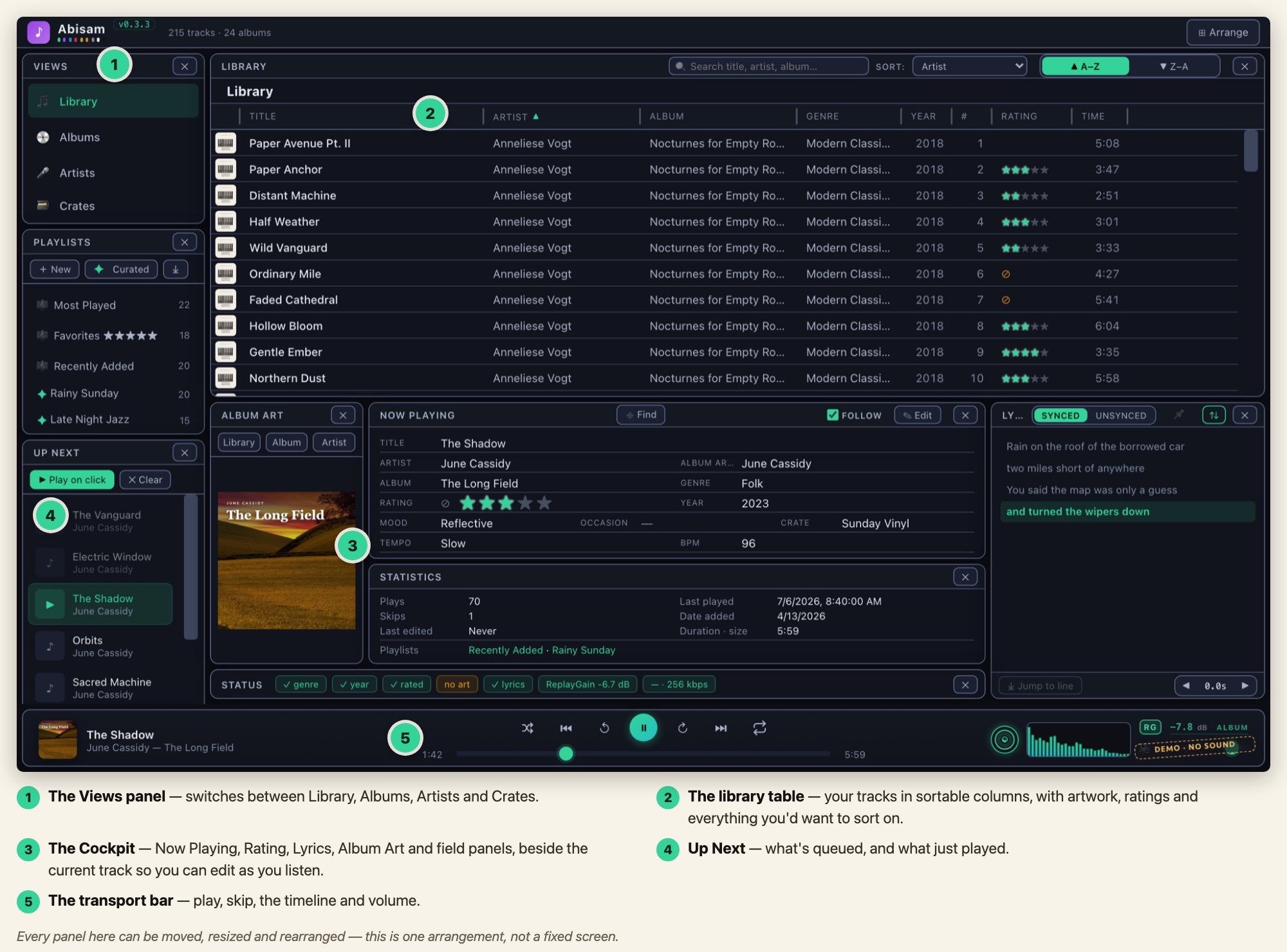
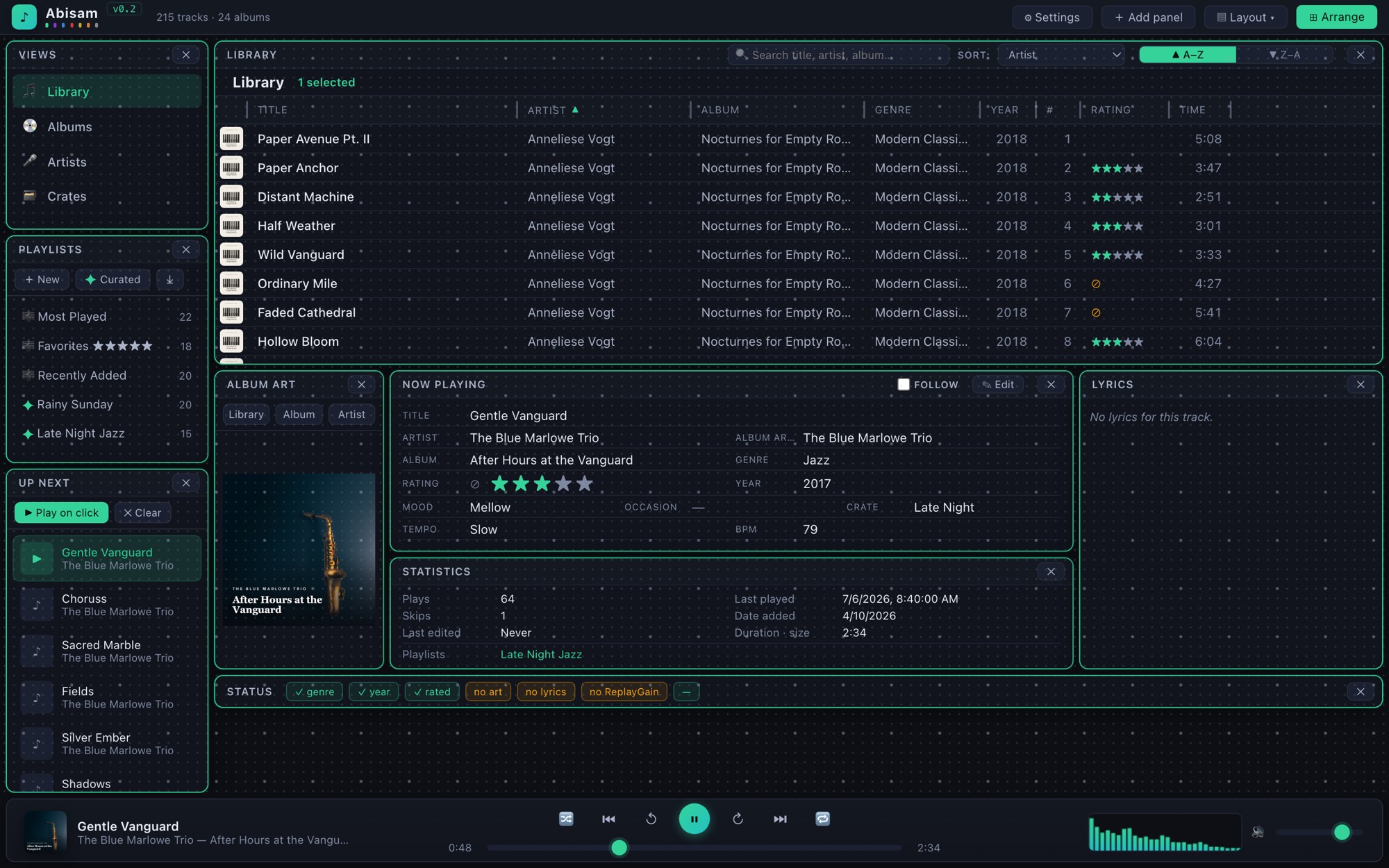
The window is built from movable panels. The usual pieces:
- The Views panel switches between Library, Albums, Artists, and Crates.
- The library table is the heart of it — your tracks in sortable columns, with album art, ratings, and everything you'd want to sort on.
- The Cockpit (Now Playing, Rating, Lyrics, and field panels) sits beside the current track so you can edit as you listen — Tab moves you from field to field.
- Up Next shows what's queued and what just played.
- The transport bar along the bottom holds play, skip, the timeline, and volume.
Every panel can be dragged, resized, and rearranged — see Skins & panels. Along the top bar, Add panel brings pieces back, Layout ▾ holds your saved layouts and the layout lock, and ⊞ Arrange opens a grid for fine-tuning.
Library, Albums & Artists
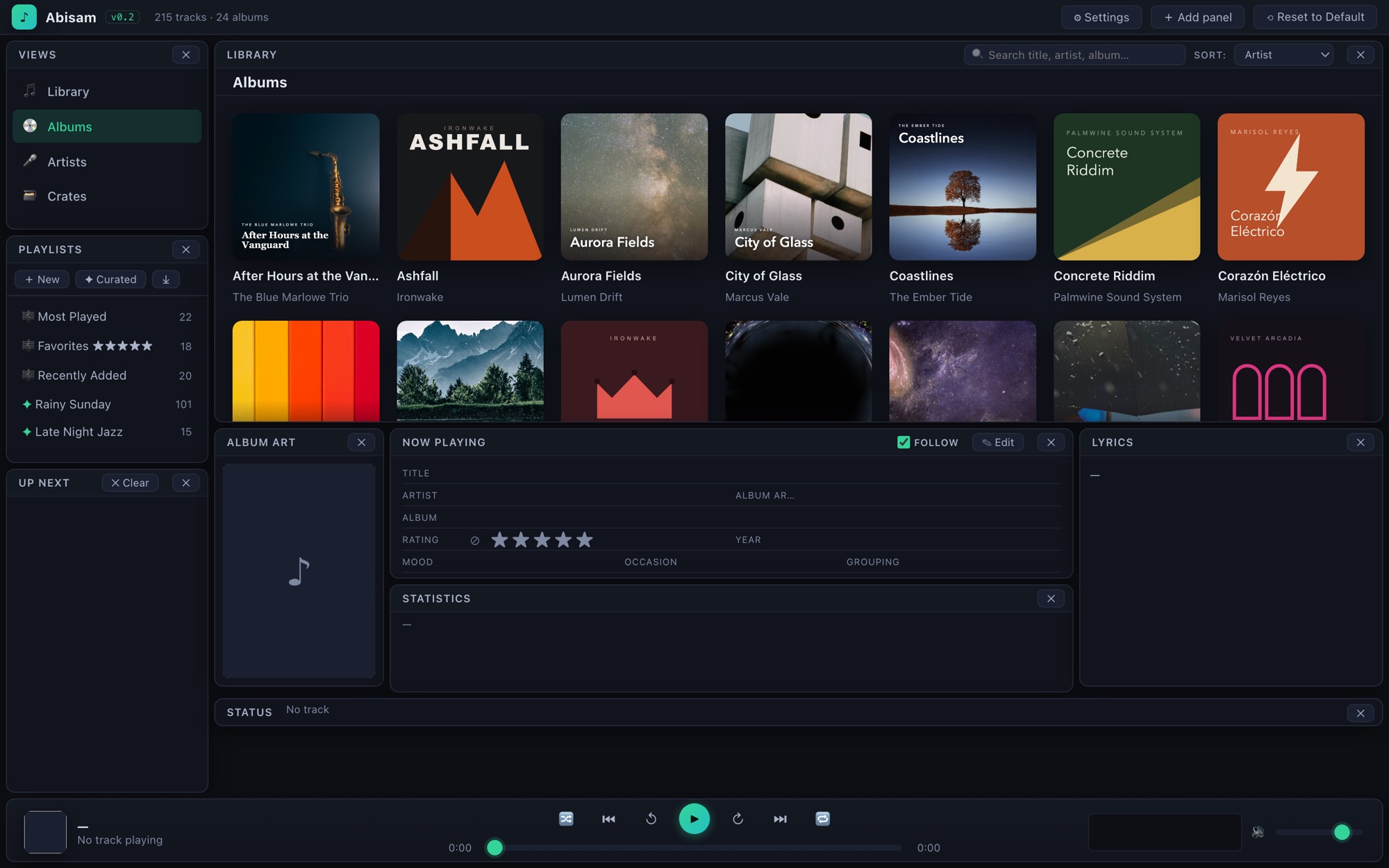
The same collection, seen four ways:
- Library — every track in one sortable table.
- Albums — a cover browser; open an album to see its tracks. A fast letter-jump strip lets you fling through a big collection quickly. Inside an album, the cover carousel moves with a click on a dimmed neighbouring cover — or the ← → arrow keys while the library panel is focused.
- Artists — grouped by artist, with a flat-track or album-browser sub-view.
- Crates — your own curated shelves (below).
Right-click almost anything — a track, an album cover, an artist card — for a menu that lets you play it, queue it, edit its tags, add it to a playlist or crate, and jump to it in the other views.
Status checks
Abisam grades your metadata at a glance. A row of status chips shows how complete an album or track is: a green ✓ means the check passes; an amber chip names the gap — "3 missing genre", "5 without art", "duplicate track #4". Checks cover genre, year (and year consistency across an album), ratings, track numbers, artwork, lyrics, ReplayGain, and format/bitrate. Every chip always shows, so a well-kept album reads as a wall of green.
In the Albums and Artists views the chips sit along the bottom; clicking an amber one selects the offending tracks so you can batch-fix them (across a whole artist it filters the list down to just those). In the Cockpit, the Status panel grades the current track, and clicking a chip opens the tag editor on the tab that needs attention. Right-click the chips to choose which checks you care about.
Crates
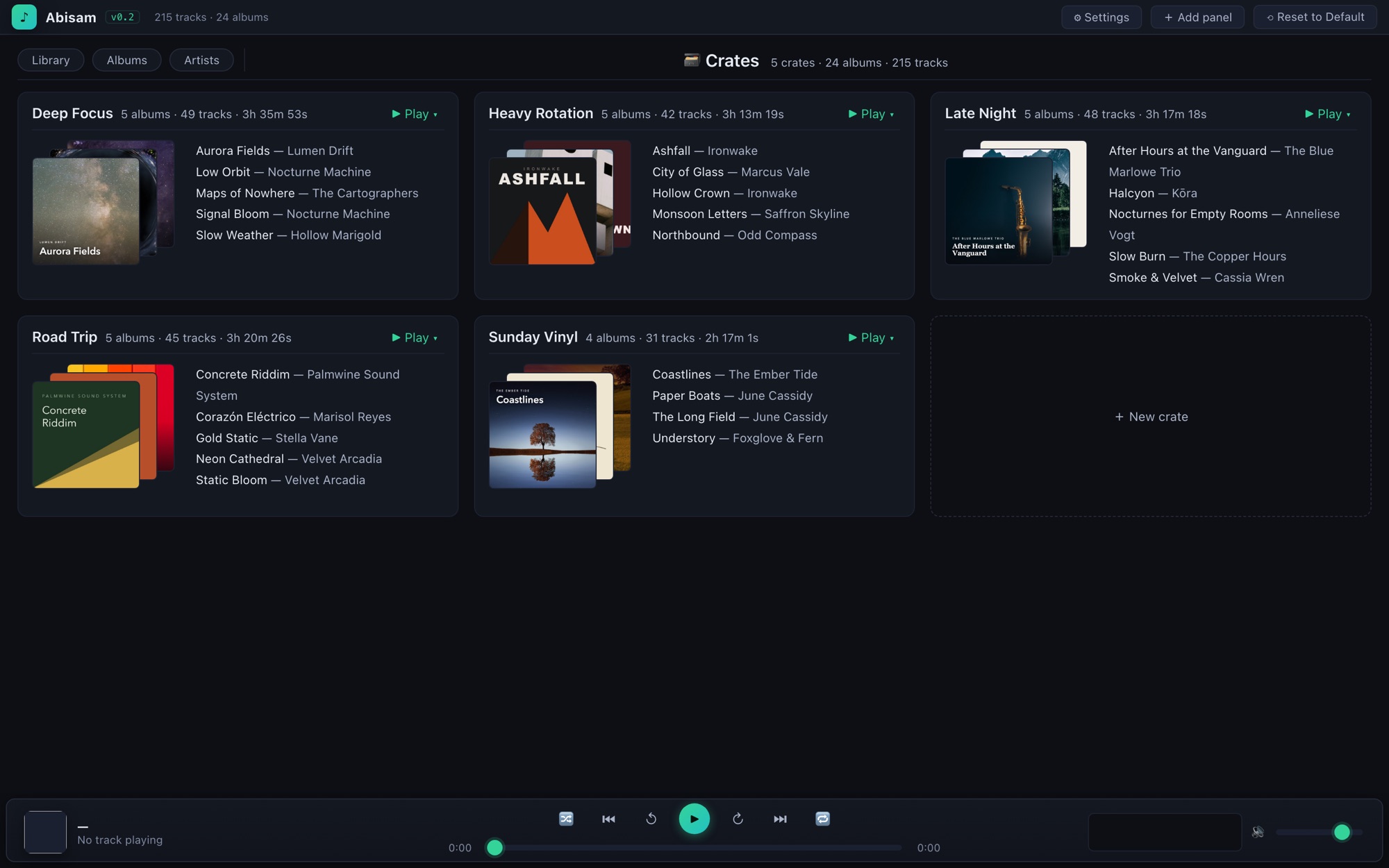
A Crate is a hand-picked shelf of albums — grouped by mood, activity, era, whatever you like ("Sunday Morning," "Deep Focus," "Road Trip"). To fill one, right-click any album anywhere and choose Crates → the crate you want, or make a new one.
The Crates view shows each crate covers-forward. Open one and you get a column of play modes on the left and the crate's albums on the right:
- Play in order, shuffle albums, shuffle tracks, full shuffle, or a Sampler (1–3 tracks per album).
- A ★ 3+ gate (on by default) keeps play modes to your better-rated tracks; below-gate tracks show dimmed so you can see what's skipped.
- New playlist from crate opens the Curated Playlist editor pre-filled with the crate and a rating minimum, ready to refine.
Because a crate is written into your files (as a standard grouping tag), your crates survive a rescan — or even a rebuilt library.
Searching & sorting
The search box filters the current view by title, artist, or album as you type. Click a column header to sort by it; click again to reverse — or use the Sort dropdown in the Library toolbar, which lists exactly the columns you have showing, beside a direction toggle that speaks plainly: A–Z / Z–A for text, Newest / Oldest for dates, Highest / Lowest for ratings, Longest / Shortest for time. Each field starts in its most useful direction, and Tempo sorts by speed (Very Fast → Very Slow), not alphabetically.
Choose your columns. Right-click any column header to show or hide columns — including Date Added, Grouping, Tempo, and BPM, which are available but start hidden (Restore all columns brings everything back). Drag the edges to resize; your choices are remembered. The Albums and Artists walls follow the direction toggle too — flip A–Z to Z–A and the covers flip with it.
In a playlist, "Playlist order" is the playlist's own order (what plays and what a saved copy freezes); other sorts are a temporary view lens that never changes the playlist itself.
Playback & Up Next
Double-click a track to play it, or select tracks and press the play button. The Up Next panel shows the queue — what's coming, the current track highlighted, and a few recently-played tracks above it. Drag to reorder, or right-click a track anywhere to add it to the queue.
Shuffle and repeat live on the transport bar. Keyboard shortcuts cover the essentials (play/pause, next/previous, and seeking within a track), and every shortcut is editable under Settings → Shortcuts if you prefer your own.
Crossfade & jumps
Under Settings → Playback you can turn on a crossfade that overlaps the end of one track with the start of the next when a track finishes naturally. You control both the fade length and how the incoming track ramps up. Skipping is always instant — the crossfade only applies to natural transitions.
Two jump buttons flank the play button and skip forward or back within a track by an amount you set; when the player is focused, the ← and → arrow keys do the same.
Sound output
Settings → Playback → Audio output device chooses where the music plays. If you get no sound at all, your system default may be a Multi-Output or aggregate device that some apps can't drive — pick a specific one (Built-in Speakers, say) and it switches instantly and is remembered. Just plugged something in? ⟳ Refresh re-reads the device list.
Volume normalization (ReplayGain)
Recordings are mastered at wildly different loudness, so one track blasts while the next is barely audible. ReplayGain evens that out, playing each track a little quieter or louder so they all sit at a similar level. The controls live in the volume section of the transport bar (the RG button and the small readout above the slider) and in full under Settings → Playback → Volume normalization.
Abisam reads the ReplayGain value already stored in each file's tags — it doesn't analyze audio or change your files. That value was written by whatever tagged the track (foobar2000, MusicBrainz Picard, dBpoweramp…); a track with no tag simply plays at its raw volume. You can fall back to an album's gain when a track has none, and a clip guard keeps a boosted quiet track from distorting. If most of your library reads as "none", the files were never tagged — add the tags with an external tool, rescan, and Abisam picks them up.
Analog Mode (record player)
Analog Mode plays your library as though it were coming off a turntable — surface crackle, the odd dust pop, a little warmth, and (if you want it) the needle dropping into the groove at the start of a side. It's off by default and changes nothing about your files: the effect is added to the sound on its way out, never written to disk. The record icon in the transport bar opens it; everything also lives under Settings → Playback → Analog Mode.
The quick way in is Record condition — five presets from Mint (nearly silent) to Thrashed (a charity-shop survivor). Needle drop adds a lead-in and run-out for a side or a whole album on a flip timer, rather than between every track. For full control, the Record Sound Simulator exposes each layer on its own — surface floor, crackle, dust pops, groove wear, turntable rumble, hum, and a record EQ — plus optional wow & flutter for that slow pitch wobble. You can even drop in your own square .svg as a spinning record face. Everything is live: move a slider while music plays and you hear it at once.
The tag editor
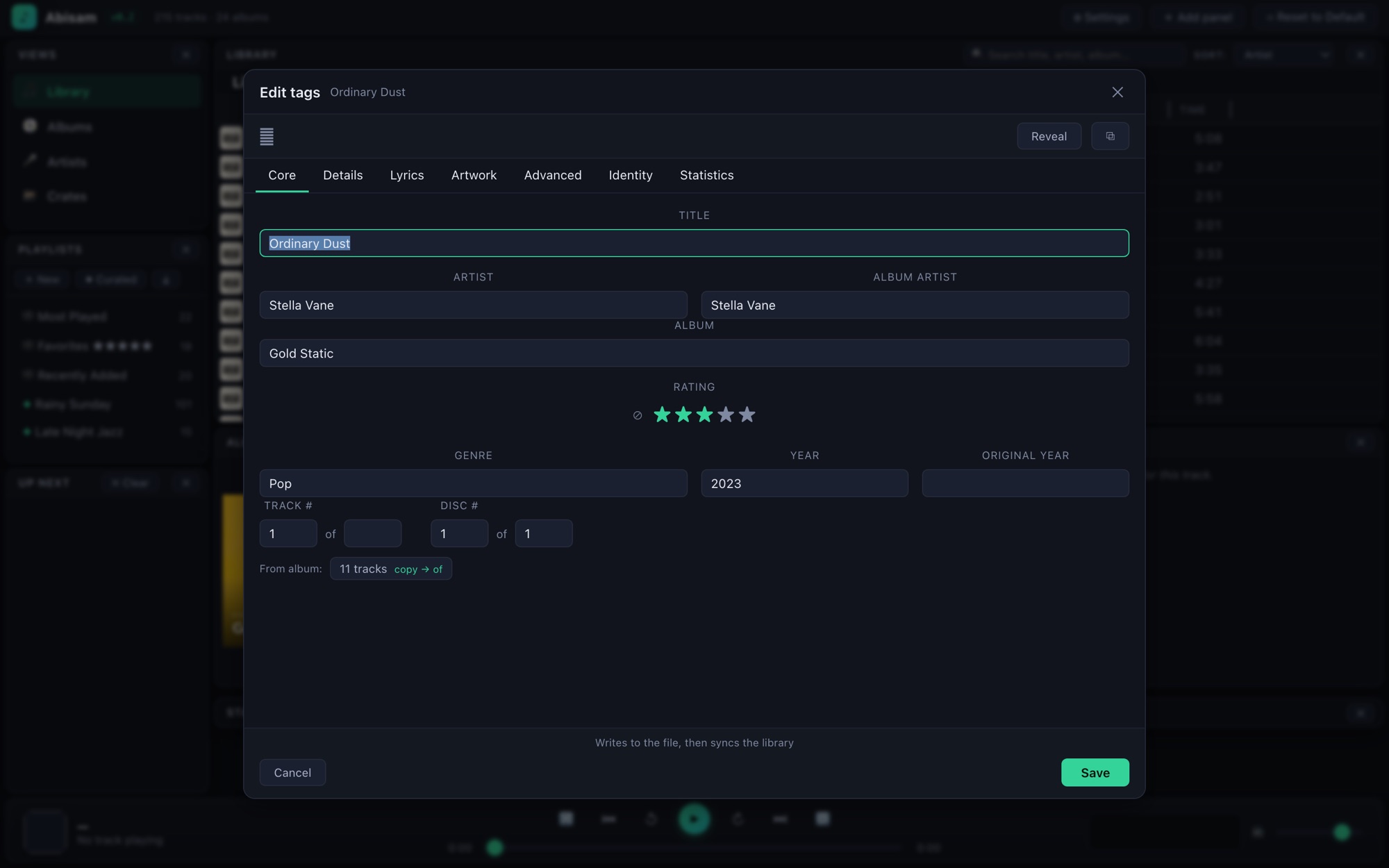
Right-click a track (or a selection) and choose Edit tags to open the editor. It's organized into tabs — Core (title, artist, album, and so on), Details (composer, mood, tempo, and more), Lyrics, Artwork, Advanced (custom fields), Identity (service IDs), and Statistics.
You can also edit right from the Cockpit beside the playing track — no dialog needed — and edit a whole album or a multi-track selection at once. In a batch, a blank field means "leave unchanged," so you only touch what you mean to.
The Album Art panel
The Album Art panel shows the artwork for whatever track you've selected. When a track carries more than one image — a back cover, a disc label, an artist photo — the panel plays through them as a slideshow while the music plays, with a small strip of controls beneath the artwork.
The controls sit in fixed positions — speed on the far left, navigation in the center, the booklet button on the far right — and any control you can't use is hidden but keeps its space, so nothing shifts around as you move between tracks.
| Control | What it does | When it appears |
|---|---|---|
| Speed 15s 8s 3s | How long each image stays on screen. Click to cycle. | Track has more than one image. |
| ◀ / ▶ | Previous / next image. Wraps around at both ends. | Track has more than one image. |
| Dots | One per image; the filled dot is the one showing. Click any dot to jump to it. | Up to six images. Beyond six — or in a narrow panel — the dots become a 3 / 9 counter. |
| ❚❚ / ▶ | Pause or resume the slideshow. | Track has more than one image. |
| ▤ Booklet | Opens the Booklet panel to read the pages. | Track has booklet pages. |
The position counter lives in the panel's title — ALBUM ART [3/6] — rather than in the strip.
Good to know
- The slideshow follows the music. It only advances while a track is actually playing; pause playback and it holds the current image. It's not a screensaver.
- Clicking a dot or an arrow pins that image for the rest of the track — automatic advancing picks up again on the next track. Choosing an image is meant to stick.
- Booklet pages open in their own panel. They're often portrait pages or double-page spreads, so they'd be unreadable squeezed into a square frame — the ▤ button opens the Booklet panel instead. It's hidden by default; add it from + Add panel, or just press ▤ on any track that has pages.
- Resize freely. The artwork scales with the panel; make it narrow enough and the dots give way to a counter so the other controls keep their places.
- One image, no strip. MP4/M4A files store a single untyped cover, so a track in that format shows just the one image. MP3, FLAC and Ogg carry the full set.
- Labelled for screen readers. Every control announces what it is — the speed button, each dot (by image name, like "Back cover"), and the booklet button.
The panel shows every picture embedded in the track's file, plus the album-folder cover when the file has none of its own. If the cover comes from the folder rather than the file, the first dot says so — "Cover — shared, not embedded in this file." It matters because editing or removing a folder image changes every track in the folder, while an embedded image belongs to just one track.
Ratings & play tracking
Rate any track from 0 to 5 stars (half-stars included); a zero-star "ignore" is distinct from unrated. Ratings drive Crates and Curated Playlists, so they're worth setting as you listen.
Abisam also quietly tracks plays, skips, and last-played: a track counts as played once you've heard about half of it (or four minutes); moving on early counts as a skip; restarts and re-plays judge nothing. Those numbers feed the Statistics tab and are available as playlist criteria — "songs I haven't heard in a while," for instance.
Custom fields & vocabularies
Beyond the standard tags, you can define your own fields — an "Occasion," an "Energy," anything you sort by — on the Advanced tab. Any custom field can be turned into a vocabulary list: a controlled set of allowed values, so instead of typing free-form (and misspelling "Sountrack") you pick from a consistent list, with type-ahead and multi-value support.
Fields like Mood, Tempo, Occasion, and Genre already work this way. Your custom fields and their values are written into your files as standard tags, so they travel with your music.
How your edits are saved
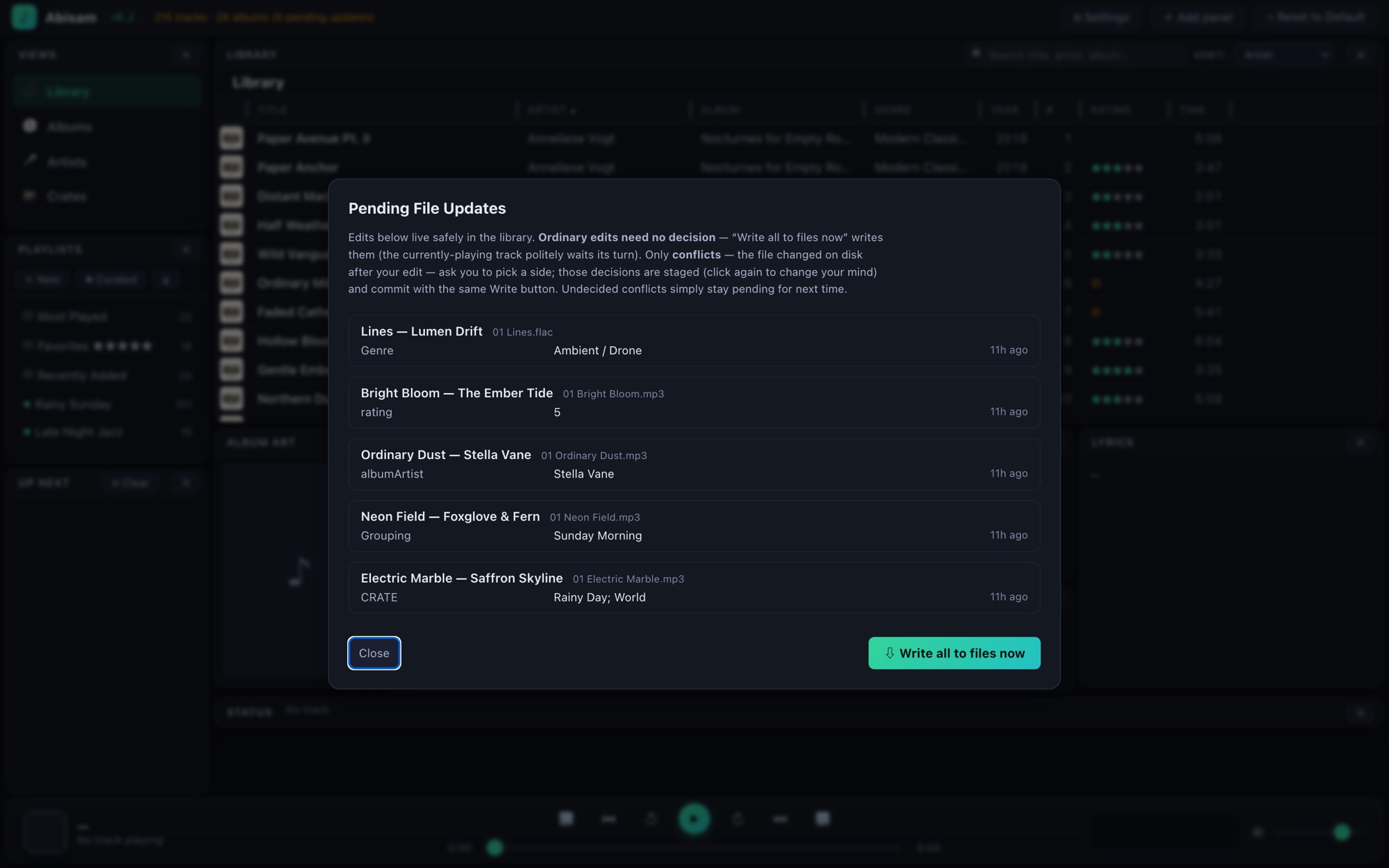
Every edit — a tag, a rating, a custom field, a crate — is saved to Abisam's library database instantly, so the app is always fast. The audio files are then updated a moment later by a background writer, so your changes end up in standard tags other players understand.
That writer is careful: it never touches a track while it's playing, and it always finishes writing before the app closes. The header shows "(N pending updates)" while anything is still waiting.
Want to decide exactly when files change? Settings → Library → Write tag edits to files → Only when I say holds every file write until you press Apply. A pending-updates report lists everything waiting, flags any file that changed outside Abisam, and — for those conflicts — lets you choose whether your edit or the file on disk wins. Pending edits survive restarts, and a rescan never overwrites an edit that hasn't reached its file yet.
Identifying & fixing tags
For messy or unknown files, right-click a track (or a whole album) to look it up:
- Fix tags (MusicBrainz) — searches the open MusicBrainz encyclopedia by your existing tags. Free, no account, works out of the box.
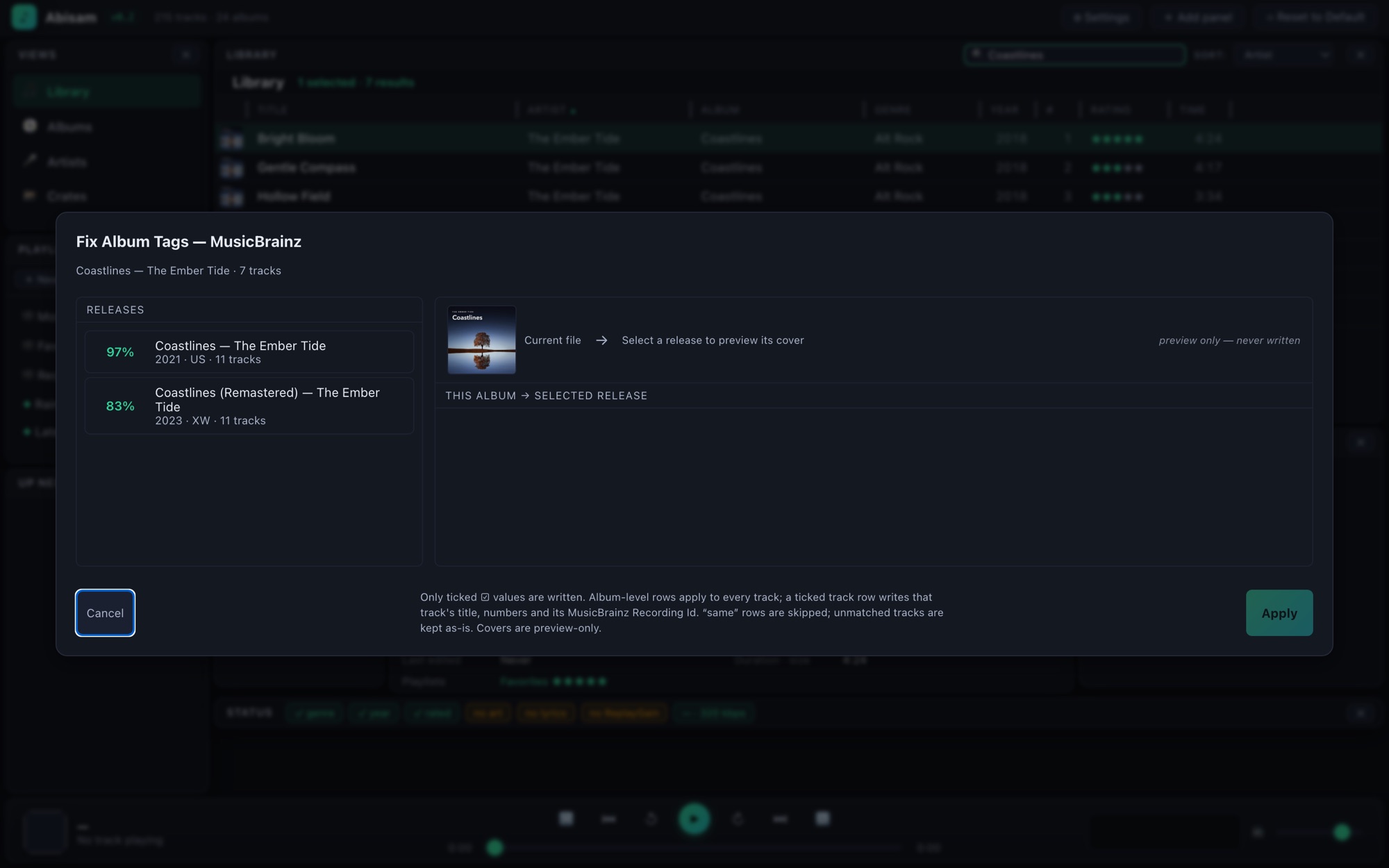
- Fix album tags (MusicBrainz) — matches the whole tracklist at once.
You get a side-by-side sheet: your current tags next to the match, field by field, with cover art from the Cover Art Archive so you can confirm the right pressing. Tick exactly which fields to apply — nothing is written until you say so. Album lookups can fill in genre, label, catalog number, and the MusicBrainz IDs alongside the basics.
Missing cover art? On the tag editor's Artwork tab, Look up artwork online searches the Cover Art Archive for the album. If the track already carries a MusicBrainz ID (from a lookup or a tagged rip), the exact edition is offered first; otherwise it searches by artist and album, and you can browse a whole artist's covers. Each result shows its real pixel resolution so you can pick the sharpest, and clicking a title opens every image that release holds — front, back, booklet, disc — to apply to the matching slot. As always, nothing is written until you choose one.
Lyrics
Right-click a track (or a selection) → Fetch lyrics… and Abisam asks LRCLIB, a free community lyrics database, sending only the title, artist, album, and length. Every match is shown with a preview so you never accept anything blind, and a result may bring plain words, a timed transcript (LRC) that scrolls in the Lyrics panel as the song plays, or both.
You can also let Abisam look up missing lyrics on its own — Settings → Services → Lyrics, off until you switch it on. A track with no lyrics is looked up once, a short way in, and if LRCLIB has nothing that's remembered, so a big library never hammers a free service. Automatic matches are scored and only pre-ticked when they're strong; anything uncertain waits for you in Settings → Maintenance → Lyric suggestions. Plain words go in the standard lyrics tag every player reads; a timed transcript goes in a custom field so other editors keep it too.
Playlists
Build a regular playlist by dragging tracks in, or right-click a selection → Add to playlist. Drag to reorder; a playlist opens in its own manual order. You can export a playlist as an .m3u file and import one back in.
Curated Playlists
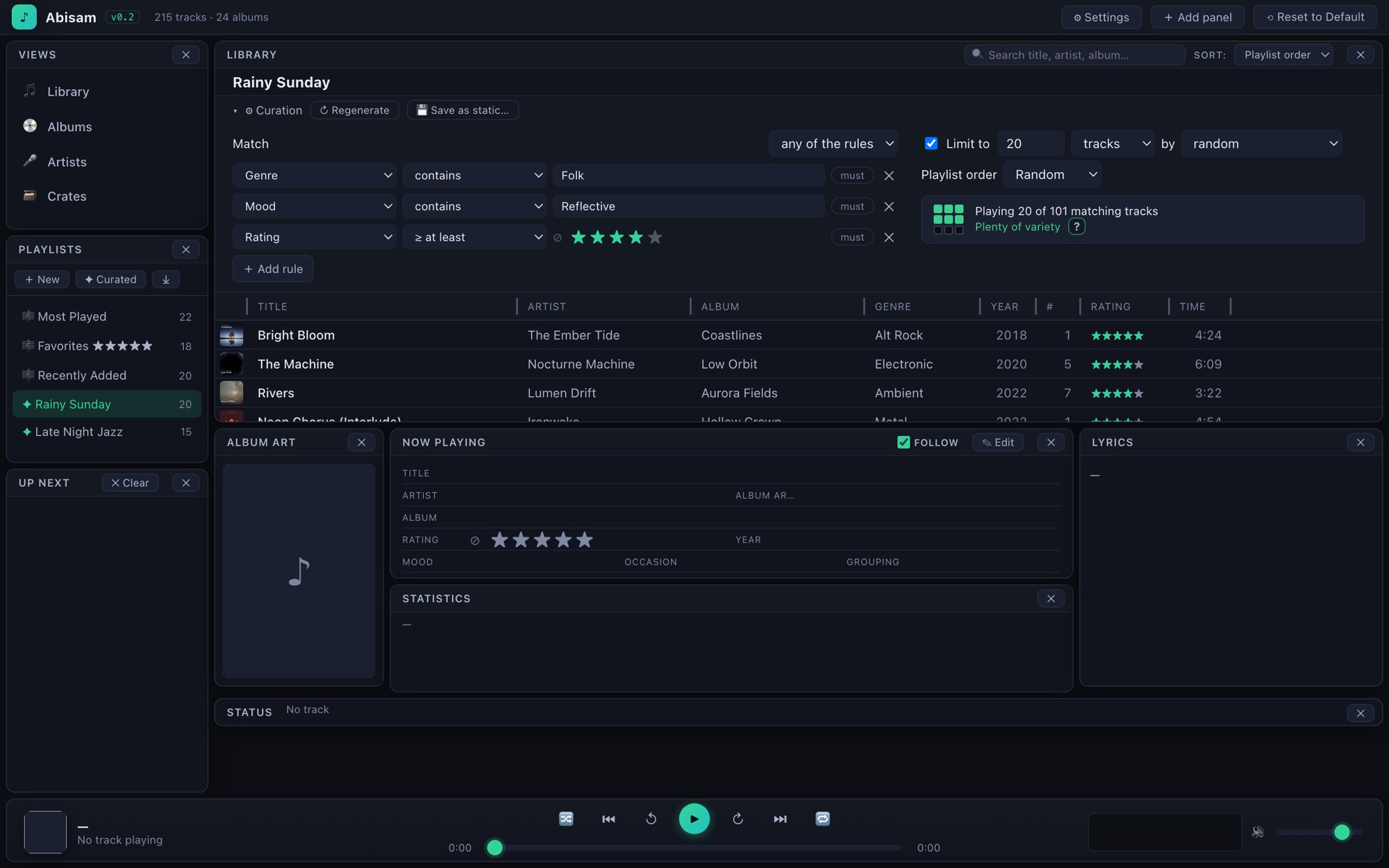
A Curated Playlist fills itself from rules instead of hand-picked tracks. Click the ✦ in the Playlists panel and describe what you want:
- Rules on any field — rating, genre, tempo, mood, play count, last-played, your own custom fields — matched all or any. Mark a rule must to require it even in "any" mode ("anything upbeat, but it must be 4 stars").
- Tag-set matching for fields that hold several values at once (genre, mood, crate, occasion, tempo, custom tags): has all of requires every listed tag, has any of needs at least one, and has none of excludes them. List the values separated by semicolons (Jazz; Ambient); matches are on whole tags, so "World" won't catch "Worldbeat".
- A limit — so many tracks, or so many minutes — chosen by most-played, highest-rated, most-recent, random, and more.
- A playlist order — the order the tracks actually play in.
A live count shows how many tracks match and how much variety the pool holds, so you know whether re-shuffles will feel fresh or repeat. Hit Regenerate for a new random mix any time, or Save as static to freeze the current list into a normal playlist you can keep. You can edit a Curated Playlist's rules right above its own live results and watch them update as you type.
Looking after your library
Settings → Maintenance gathers the tools for keeping a big collection healthy. Almost everything here works on Abisam's own database and leaves your music untouched; the only things that ever change a file sit behind a button you press, and nothing runs on its own.
- Library health — a plain-language list of things worth knowing: folders that have gone missing, tracks whose files are no longer there.
- Tag health — scans every file and sorts them into buckets (reads & writes cleanly, a repairable fault, unreadable, read-only, no tags at all). Scanning only reads; nothing changes until you ask for a repair.
- Duplicates — Find duplicates gathers likely copies into a playlist to browse; Audit Duplicates is a full-screen workspace with a suggested keeper and a review queue. Anything you remove goes to the Trash, so a mistake is recoverable — deleting is never automatic.
- Recovery id — writes a tiny id into each file so Abisam can always re-link your ratings and play counts even if a file is later moved, renamed, or retagged. Optional, one custom field, and it can run automatically on new music.
- Compact library database — clears cover images the database no longer uses and shrinks the file, handing the space back to your disk. Your music and artwork files are untouched.
Reports
Settings → Reports turns your library into something you can read away from the app: a browsable HTML report to open in any browser or print, and the same information as a CSV spreadsheet for sorting and counting your own way. Library at a glance underneath is a dashboard of what your collection is made of — formats, bit rates, how much is rated, how much has artwork, and where the gaps are.
Skins & panels
The interface is yours to arrange. Every panel drags, resizes, and snaps to its neighbours — put the library where you want it, the cockpit where you want it, and hide what you don't use.
Arrange mode. For a deliberate layout pass, click ⊞ Arrange in the top bar: a dot grid appears and every panel is outlined so you can see exactly what sits where. Click a panel and nudge it a few pixels at a time with ⌥ Arrow (add Shift for bigger steps). Press Esc when you're done.
Named layouts & themes. The Layout ▾ menu saves the current setup under a name — and you choose what it carries: ▦ the layout (panel positions & sizes), 🎨 the colors & backgrounds, or both, which makes it a full theme. The icons next to each saved name show what it holds, and applying one restores exactly that. The Reset group restores the standard layout, colors, or panel backgrounds individually.
Lock it. When a layout is right, lock it from the same menu so a stray drag can't move anything: Panel Lock freezes everything exactly as arranged — rounded corners, gaps and all; Bordered Lock settles the panels flush with visible seams; Borderless Lock hides the seams so the window reads as one clean face. Unlock any time from the same place.
Layout stencil. Also under Layout ▾: Export layout stencil (PNG) saves a pair of black-and-white maps of your exact arrangement — one as-is, one in its flush locked form — every panel measured and labeled, sized for Retina, with a small data file alongside. It's made for designing background art that fits your layout to the pixel.
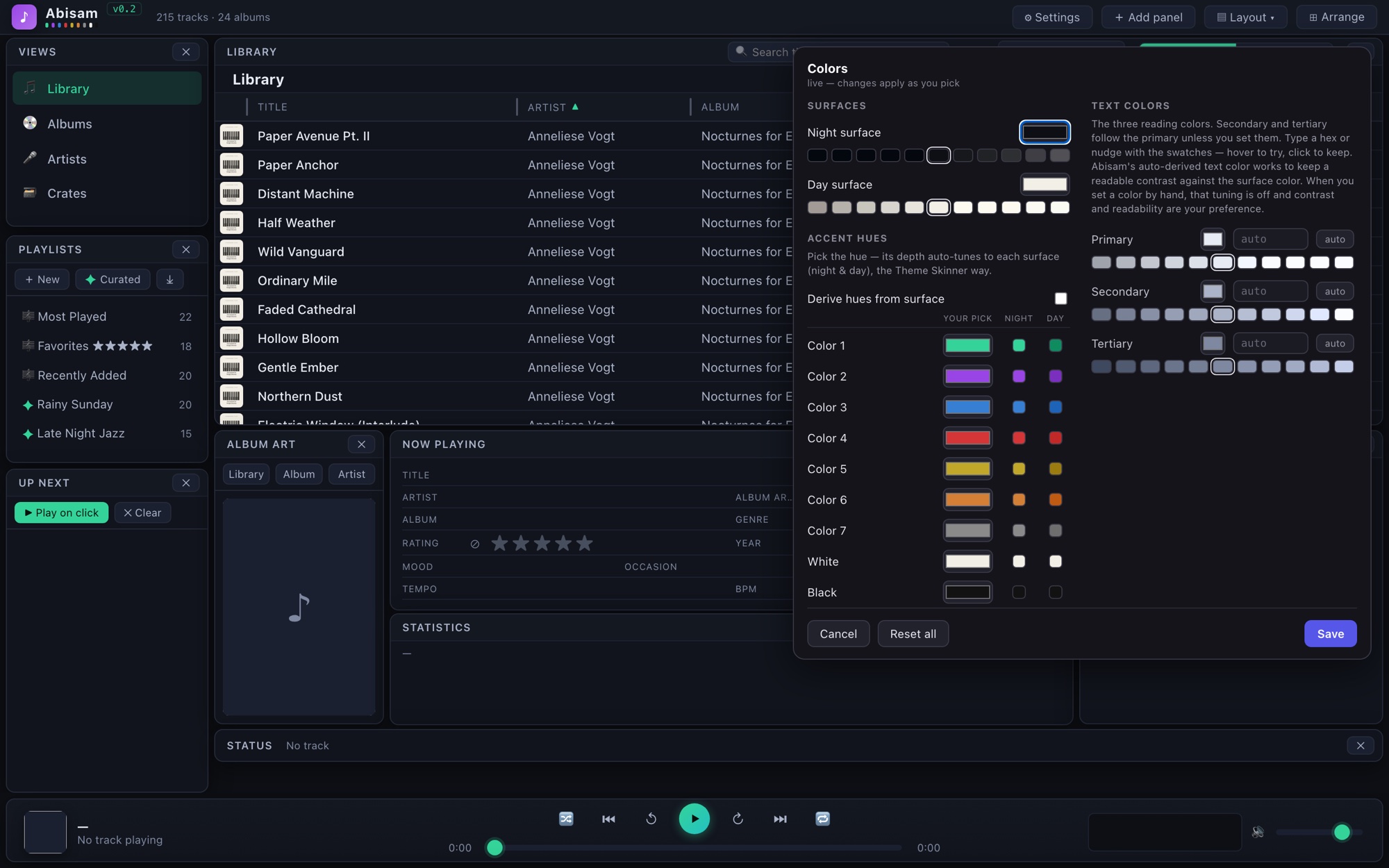
Day & night. Click the Abisam wordmark to cycle the accent color through nine choices — seven hues plus a fixed eggshell White and near Black; double-click it to flip between night and day. Day mode swaps the whole canvas to warm daylight surfaces and re-tunes the seven hues to match (White and Black stay exactly as they are) — your color choice carries across, and both are remembered.
Your own colors. Under Settings → Appearance → Edit colors… (or right-click the wordmark) you can change the night and day surfaces and all nine accent colors. Changes apply live as you pick. You choose the hue; Abisam auto-tunes its depth against each surface so everything stays readable. Hover the swatch strip under each surface to try variations of your pick; "Derive hues from surface" makes the seven hues follow the surface itself (White and Black stay put). You can also fine-tune the three reading colors — primary, secondary, and tertiary — with a hex field or a tonal swatch strip; secondary and tertiary follow the primary unless you set them. Reset all brings back the built-ins.
Panel backgrounds. Right-click any panel's title bar and choose Choose background… to open the background designer: a miniature map of your whole layout — every panel plus the app bar and transport, all paintable. Click zones to select (as many as you like), then apply a fill color or an image and watch it happen live. Images come from your image library: load one once and it's kept for reuse. With several zones selected, an image can fill each panel independently or run as one image across the whole selection — and a spanning image stays continuous even after you rearrange the panels. An image can cover the full panel, the panel only (leaving the title bar to your fill color and its darker/lighter control), or the header only — mix and match per panel. Text takes care of itself: a painted panel re-derives its text colors against your fill automatically, so light fills get dark ink and dark fills get light. "Dim background" is there if you want an image quieter; leave it off and your art shows exactly as-is.
All of this is built in — no external tools or files needed. Save a look you like as a theme from the Layout ▾ menu (it carries your colors and panel backgrounds) and re-apply it any time. And if you ever paint yourself into a corner, double-click the note logo in the top bar for a one-click reset straight back to the built-in dark theme.
Where your data lives
Two things live on your Mac, both under your control:
- Your music files — right where you keep them. Abisam never moves or copies them.
- Abisam's library — a database in your Mac's Application Support folder that holds the index of your tracks, your ratings, playlists, crates, and settings. Your edits are also written back into the files themselves, so the files are the durable copy.
Nothing lives on any company's server. There's no account, and nothing about your library or listening is ever uploaded.
Backing up
Because your ratings and playlists are written into the audio files as standard tags, your most important curation travels with the music itself — back up your music folders (Time Machine, a cloud drive, an external disk) and those come along.
The library database — which also holds things that don't fit in file tags, like playlist membership and layout — sits in your Mac's Application Support folder and is included in a normal Time Machine backup. If you ever move to a new Mac, copy your music folders across and point Abisam at them; a rescan rebuilds the library, and your file-based ratings and crates come right back.
Online lookups
Abisam works fully offline. The only time it reaches the internet is when you ask it to look something up, and it goes straight to the source — never through us.
- MusicBrainz — text-based tag lookup for tracks and albums. Free, needs no account or key.
- Cover Art Archive — album covers, fetched by release. Free, no key.
- LRCLIB — plain and time-synced lyrics; a lookup sends only the title, artist, album, and length.
- Discogs (optional) — add a token under Settings → Services and album lookups can ask Discogs alongside MusicBrainz for a second opinion on pressings, labels, and catalogue numbers. You pick what to take; nothing is applied automatically, and Abisam works fully without it.
Privacy
Abisam collects nothing and phones home to no one. There are no accounts, no analytics, no ads, and no tracking. Your library, your listening, your edits — all of it stays on your machine, under your control. Online lookups are the only network activity, they happen only when you initiate them, and they go directly to the service. That's the whole deal.
The free trial
You can try the complete app free for 30 days — every feature, your whole library, no account and no card. If Abisam earns a place in your setup, a one-time license keeps you going. There's no subscription, and your license is yours to keep.
Frequently asked questions
Does Abisam change or move my music files?
It plays your files in place and never moves, copies, or renames them. When you edit a tag or set a rating, it writes that change into the file (in standard tags other players understand), but the file stays exactly where it lives. Nothing is reorganized behind your back.
Is my library uploaded anywhere? Do you track my listening?
No. There's no account, no cloud, and no analytics. Everything stays on your Mac. The only time Abisam uses the internet is when you personally trigger a lookup — MusicBrainz, the Cover Art Archive, LRCLIB for lyrics, or an optional Discogs lookup — and those requests go straight to the service, never through us.
What audio formats does it support?
The common ones collectors use — MP3, M4A/AAC, ALAC, FLAC, WAV, and Ogg/Opus — with full tag reading across them. Abisam is audio-only by design; it does not handle video files.
Will my ratings and playlists work in other apps?
Your ratings, genres, moods, and custom fields are written into your files as standard tags, so other tag-aware players can read them. Playlists can be exported as .m3u files. Nothing is locked in a format only Abisam can open.
Can a curated playlist match songs with several genres or moods at once?
Yes. On the fields that can hold several values — genre, mood, crate, occasion, tempo, and your own custom tags — use has all of (every tag present), has any of (at least one), or has none of (exclude them), and list the tags separated by semicolons, like Jazz; Ambient. Matching is on whole tags, so "World" won't accidentally pull in "Worldbeat".
Will my computer warn me the first time I open it?
Not on the Mac — the Mac build is signed and notarized by Apple, so it opens with a normal double-click. The Windows and Linux builds aren't code-signed yet, so those systems show a one-time first-run warning (on Windows, click More info → Run anyway). See Installing & first launch.
Do I need an internet connection to use it?
No. Abisam runs entirely offline. A connection is only needed for the optional lookups, which you start yourself.
I have a huge library. Will it handle it?
Yes — Abisam is built for large collections, with a fast library database and a virtualized track table. The first scan of a big library takes a little while as it reads every file's tags and art; after that, everything is quick.
How does the free trial work?
The trial is the complete app, free for 30 days, with no account and no card required. After the trial, a one-time license keeps every feature available. It's a one-time purchase, not a subscription.
Is there a Windows or Linux version?
Yes. Alongside the Mac app, there are Windows and Linux builds — grab them from the download page.
Linux: which file do I download, and how do I install it?
Pick the file that matches your distribution:
- Fedora, RHEL, openSUSE → the .rpm
- Ubuntu, Debian, Mint, Pop!_OS → the .deb
- Anything else, or if a package won't install → the .flatpak
- The .AppImage is a no-install option — one file you just make executable and run. If it doesn't launch on your system, use the .flatpak instead.
The .flatpak is the safe bet if anything gives you trouble: it carries its own copy of the libraries it needs, so it doesn't depend on what your distribution happens to ship.
sudo dnf install ./Abisam-<version>.x86_64.rpm
sudo apt install ./Abisam_<version>_amd64.deb
# adds Flathub (for the runtime most desktops already have), then installs and runs
flatpak remote-add --user --if-not-exists flathub https://flathub.org/repo/flathub.flatpakrepo
flatpak install --user steagus_Abisam_v<version>.flatpak
flatpak run com.steagus.abisam
chmod +x Abisam_<version>_amd64.AppImage
./Abisam_<version>_amd64.AppImage
Replace <version> with the version in the file name you downloaded. x86-64 only for now.
Can it make my music sound like vinyl?
Yes — that's Analog Mode. Turn it on from the record icon in the transport bar for surface crackle, dust pops, warmth, and an optional needle drop at the start of a side. Start with a Record condition preset, or open the Record Sound Simulator to tune every layer. It's off by default and never changes your files; the effect is added only on the way out. See Analog Mode.
Can it even out tracks that play too loud or too quiet?
Yes, if your files carry ReplayGain tags — Abisam reads them and levels playback so tracks sit at a similar loudness. It reads the stored values rather than analyzing audio, so a track with no tag plays at its raw volume; you can add the tags with an external tool and rescan. See Volume normalization.
Can Abisam fetch lyrics?
Yes. Right-click a track → Fetch lyrics… and it asks LRCLIB, a free community database, for plain or time-synced (scrolling) lyrics — sending only the title, artist, album, and length. It can also fill in missing lyrics on its own once you switch that on. See Lyrics.
Can it find duplicate tracks?
Yes. Settings → Maintenance has a duplicate finder and a full-screen Audit Duplicates workspace that groups copies, suggests a keeper, and lets you review before anything moves. Removed files go to the Trash, so a mistake is recoverable — deleting is never automatic. See Looking after your library.